
From sign-in to settled
A complete walkthrough of the PoolPay journey — every screen and the actions behind it.
Four steps to clarity
Authenticate
The splash screen validates your stored JWT. Valid tokens go straight home; otherwise you land on login.
Set up & create
First-timers complete a profile, then create group or personal rooms with a color, name, and optional PIN.
Log & track
Post expenses to the chat feed; balances recalculate live for everyone in the room.
Settle & reward
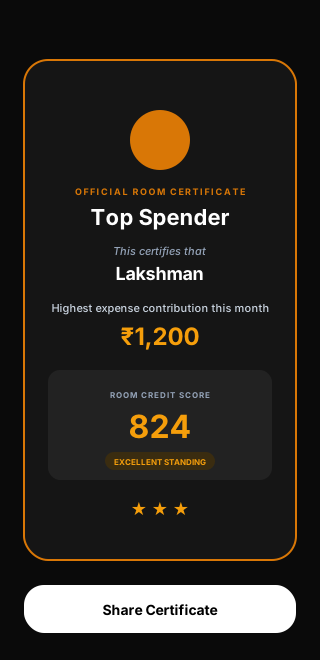
Settle dues individually or in bulk, raise your credit score, and earn monthly certificates.
Every screen, explained
Placeholder visuals below — swap each for a real exported app screenshot before launch.
What each screen does
Splash & Login
The splash screen verifies your stored token. The login screen offers a single, secure "Continue with Google" button — on success it stores your access token and checks whether your profile is complete.
Complete Profile
First-time users provide a full name, mobile number, gender, and date of birth. PoolPay updates the backend record before granting access to the home dashboard.
Home & Room Creation
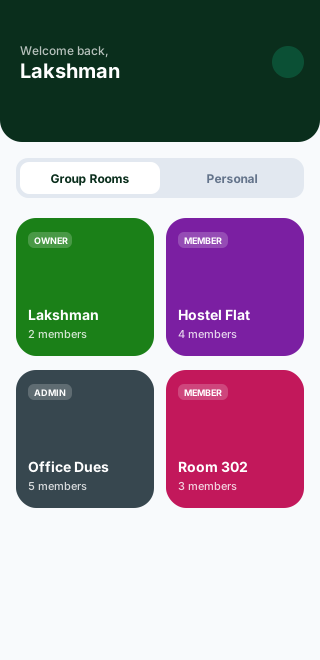
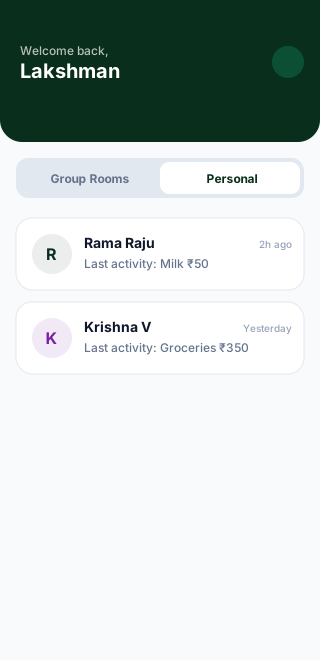
Switch between Group Rooms and Personal tabs. The Create Room dialog sets a color theme, room name, optional description, and a PIN/passcode lock toggle.
Dashboard & Settlement
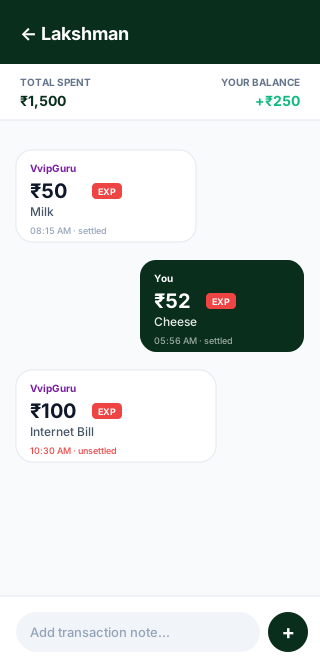
Log expenses and income in the chat feed. Long-press to enter multi-select mode for bulk settlement; settled items are locked from re-selection so records stay accurate.
Settings & Members
Rename the room, pick from a palette of 10 theme colors, manage members and roles, toggle per-member permissions, and remove members, leave, or delete the room.
Profile & History
Manage your details and review previous rooms — including countdowns for permanent deletion and rejoin windows — with recovery buttons. Logout safely clears secure storage.
The complete application workflow
Start App → Is the JWT token valid?
↳ Yes → Home Screen
↳ No → Login → Google Auth → New user? → Complete Profile → Home
Home → Create Room dialog · Tap a room → Dashboard · Profile icon → Profile
↳ Dashboard → Add transaction · Long-press → Multi-Select → Confirm → Bulk Settle
↳ Dashboard → Room header → Settings → Invite roommates → Add Member dialog
Profile → Logout → Reset secure storage → Login
Try the flow yourself
Download PoolPay and create your first room in under a minute.